
Summary
Spam call and texts are an unavoidable part of modern life. Most carriers do some form of spam protection, but some will always get through. Maintaining a personal list of blocked numbers is one way to lessen the annoyance of unwanted call/texts.
If you always configure your phone by transferring your data and settings from your previous phone, this configuration won’t have a lot of value for you since that process automatically brings over all your blocked numbers. This is primarily for:
- People like me who prefer to build phones fresh after the release of a new version of the operating system
- People who are switching from Apple to Android or vice versa
- Google Contacts is described in this post, but the same functionality may exist in Apple’s cloud-synced contact solution.
The Problem
As of the writing of this post, Android lacks native functionality to manually back up its stored list of blocked numbers. As a result, when a new phone is configured without using the normal transfer/restore process, the list is lost.
The Solution
Maintain the blocked numbers list in a Google Contact item. This syncs the list with the cloud, and when the contact is synced to the new phone, the numbers can easily be added to the local block list en masse.
Initial Setup
- To start, create a contact you’ll recognize. I’m very creative, so I named mine Spam Block.
- Add all the numbers you want to block to the contact. Thankfully, this can be done via the Google Contacts web portal instead of having to type everything into your phone.
- On an Android phone, your current block list can be found in the Phone app under Settings -> General -> Blocked numbers
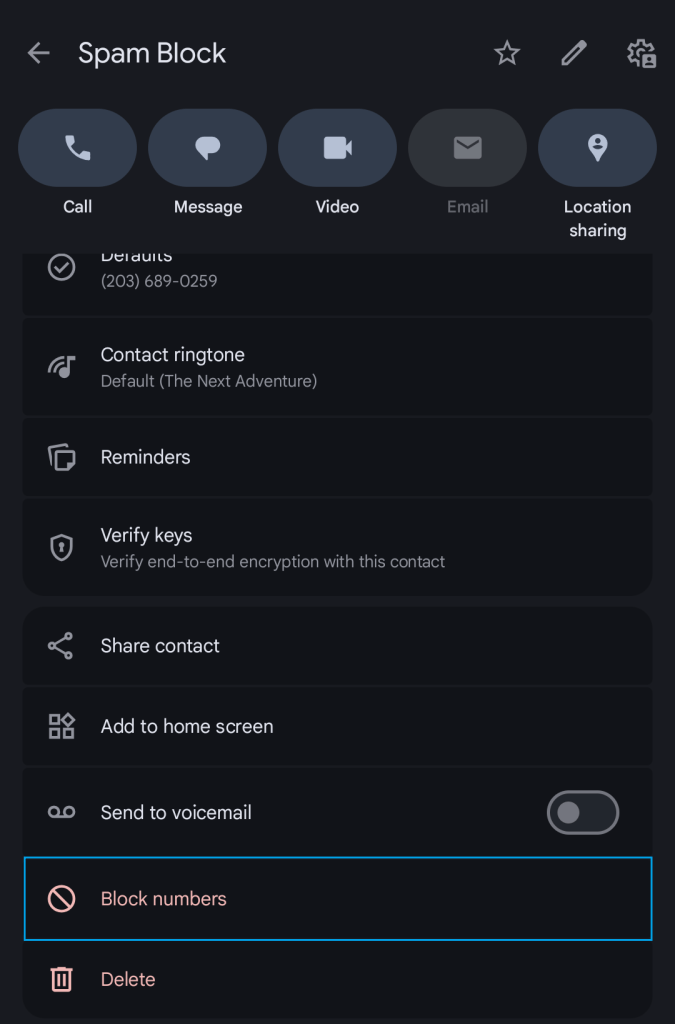
- If you added any numbers that weren’t on your phone’s local block list, select Block numbers on the Spam Block contact.
Maintenance
When you need to block a new number, follow these steps. I’ve described the process for a phone call, but the workflow for a text message is similar.
In the Phone app, expand the entry for the call and select History.
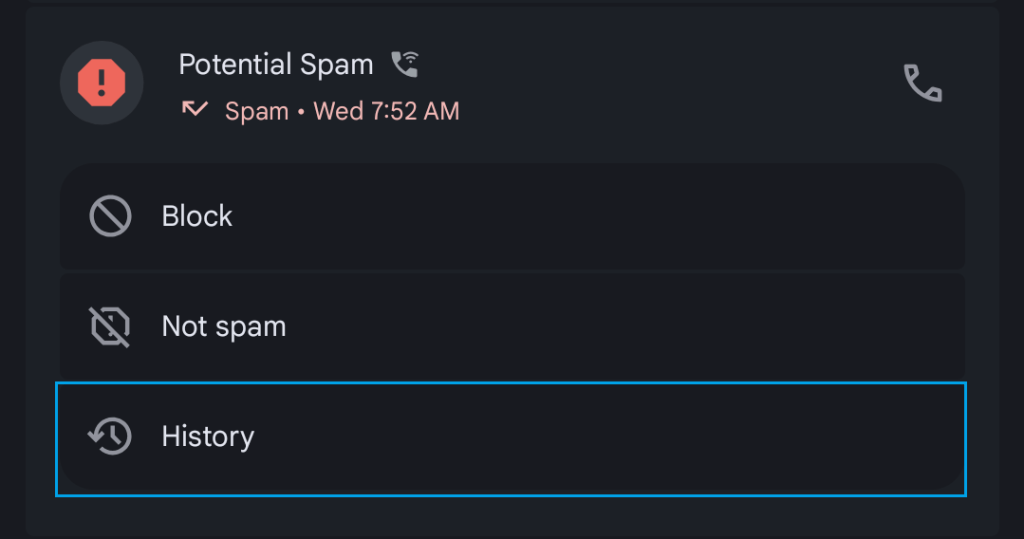
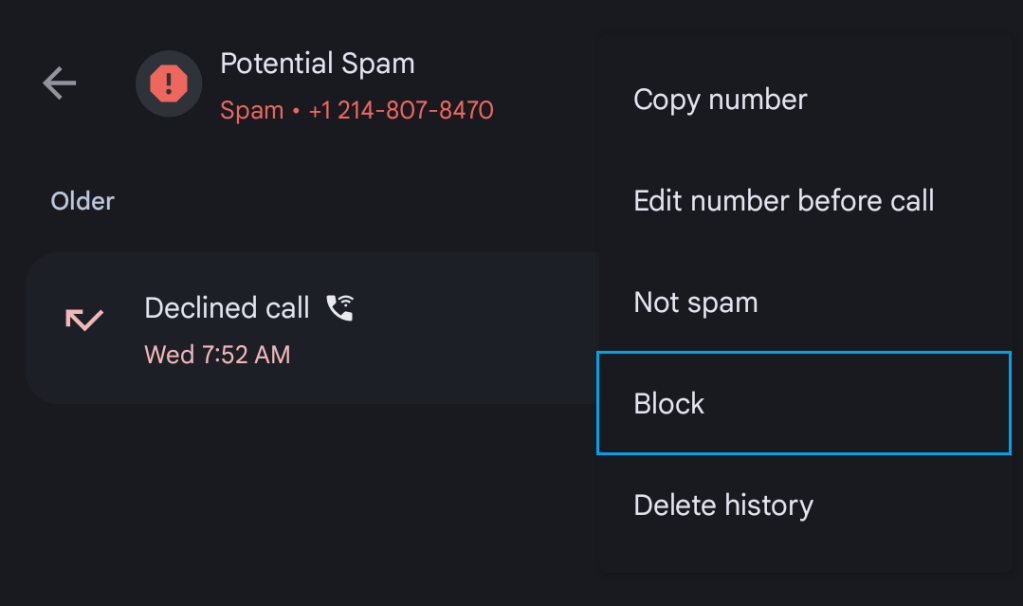
In the history entry, hit the three dots in the upper-right corner and select Block. Confirm you want to block the number.
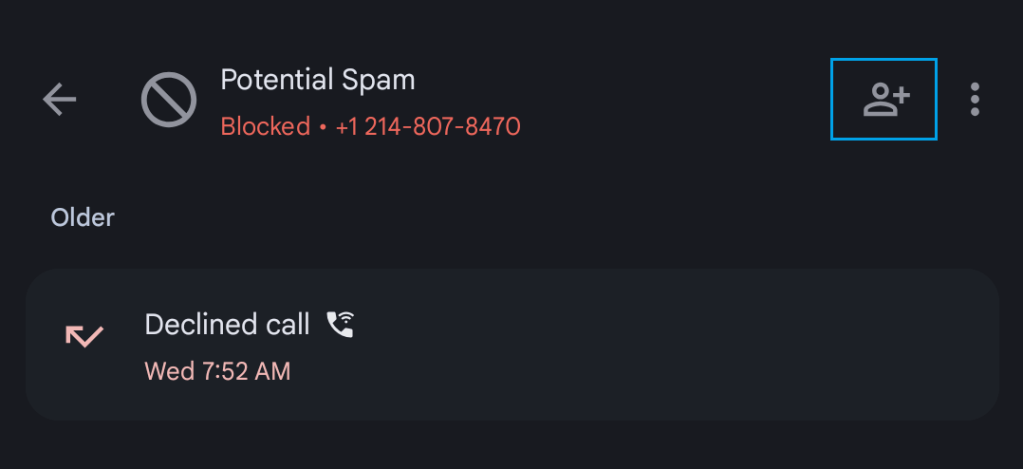
Select the Add Contact button next to the three dots
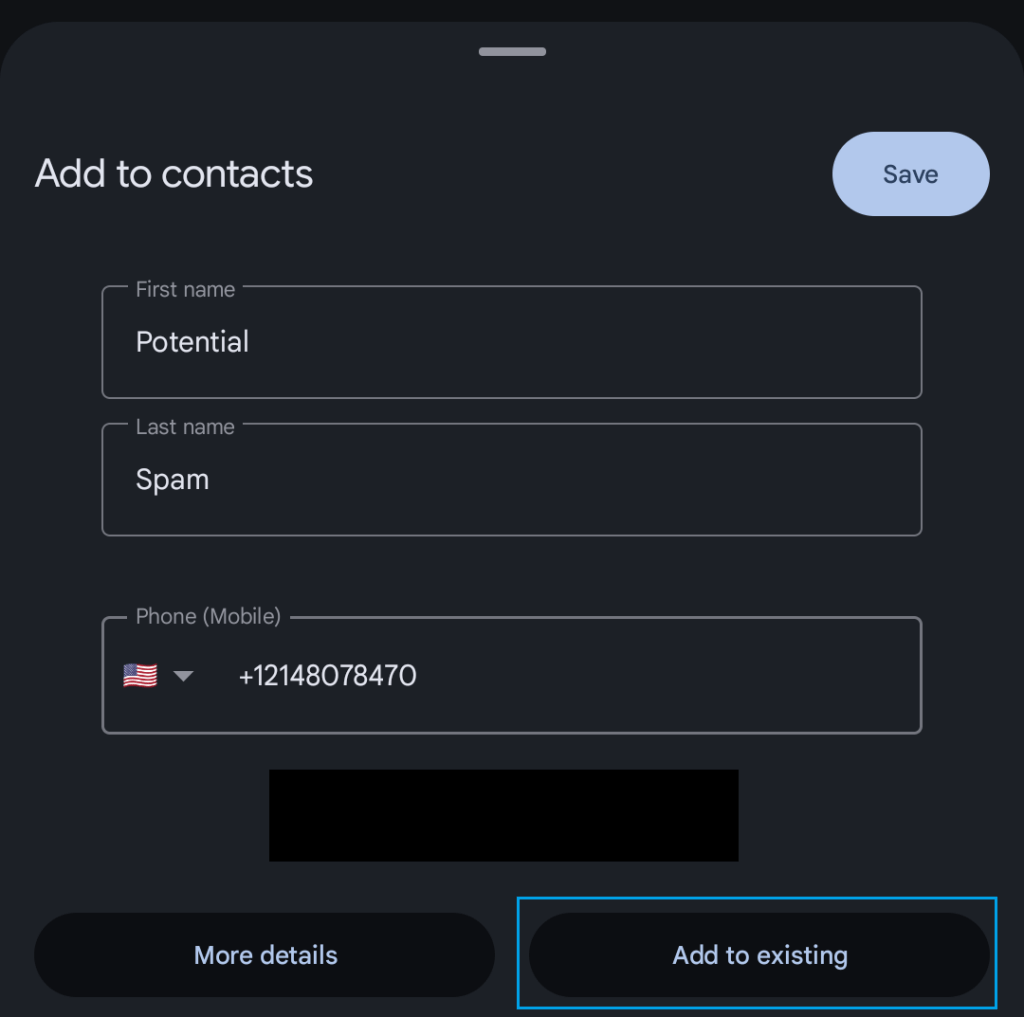
The Add to contacts window will open. Select the Add to existing button.
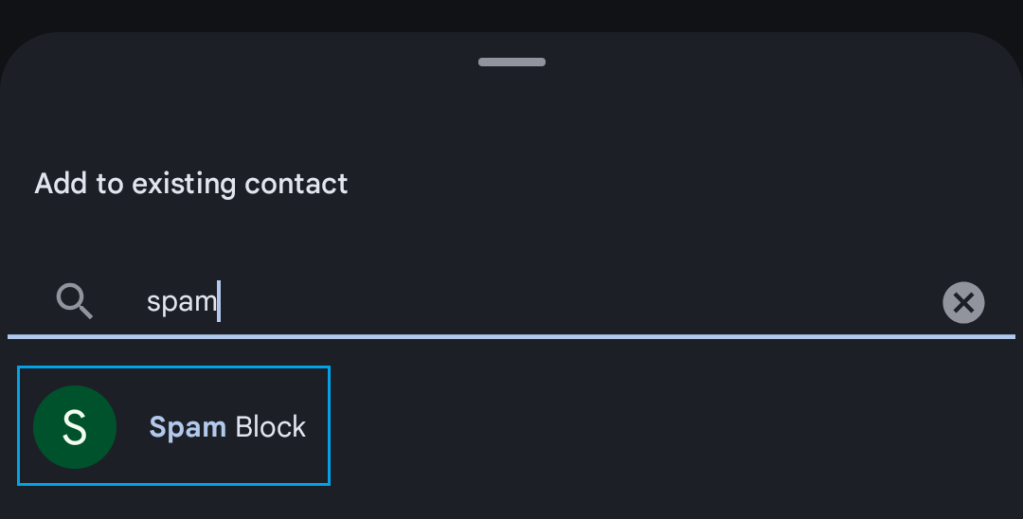
Type the name of your spam contact into the search bar, then select it when it’s shown. If the phone labeled the call as Potential Spam, you may have to rename the contact back to your chosen name.
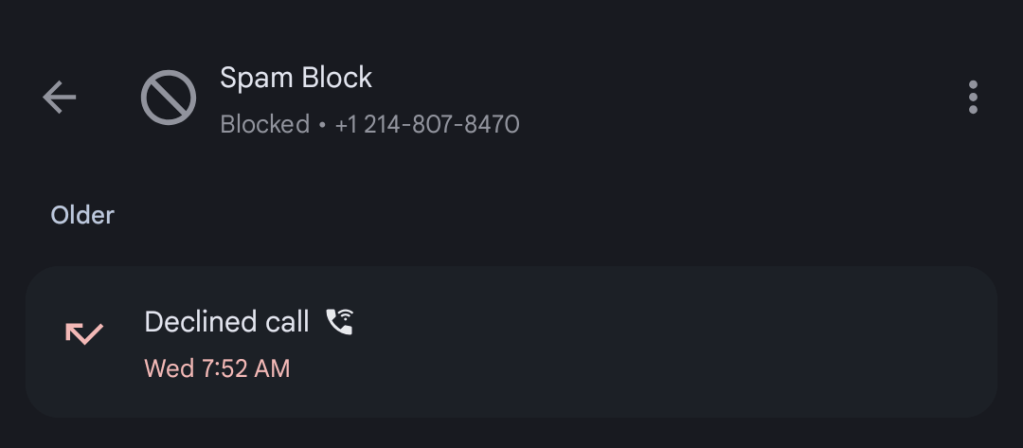
Save the contact with the new number. The call history entry should now show as blocked and coming from the contact.
New Phone
When you get a new phone, complete the normal setup process, including syncing all Google Contact data. Then open the spam block contact and select Block numbers. All its numbers will then be added to the local blocked list. Continue maintaining the list using the process described above.


Leave a Reply