Overview
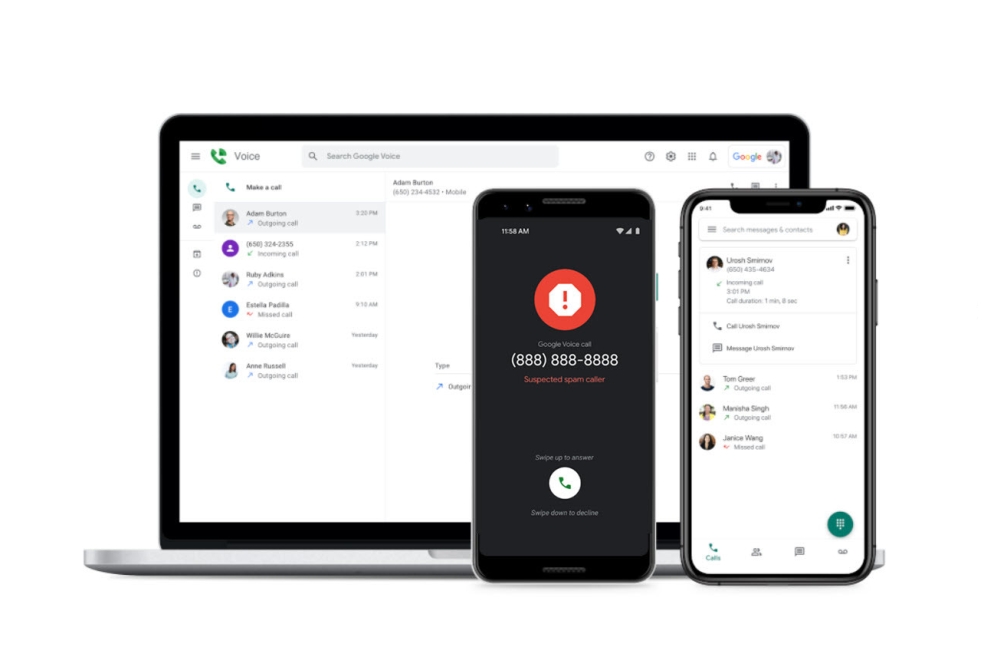
If you’re not familiar with Google Voice (GV), it’s a service launched in 2010 that allows consumer and commercial users to claim a phone number from blocks reserved for voice over internet protocol (VoIP) purposes. Those users then configure the behavior of their chosen numbers. You can do neat stuff like directing incoming calls to multiple devices, but for the purposes of this post, the big draw is that it’s free.
The idea is to use it as a text-only number that can be given to anyone who doesn’t actually need your real one. I use mine for:
- Rewards programs (grocery stores, restaurants, gaming, clothing stores, etc.)
- Any online seller who doesn’t need to coordinate physical delivery
- Restaurant open table notifications
- Donations to non-profits who bombard donors with follow-up contact
- Subscription services
In addition to annoyingly frequent primary contact, any of those can sell my information or involuntarily expose it via a breach. Many have never contacted me using the number, and the ones that do almost always text. So I’ve configured GV in a way that effectively disables phone calls.
If the spam ever gets too bad, I can simply choose a different number in GV (abandoning the old one) and update any accounts (if necessary).
Setup
- Have an active Google account
- Using a computer, go to https://voice.google.com
- Complete the setup process, including choosing a phone number.
- You aren’t required to use a local area code
- You can search for number combinations to find one that’s easy to remember
- Deny all requests for GV to access browser features/notifications
- During the setup process, you must link your GV account to your primary phone number. This is an anti-spam measure and ensure ensures nobody else can use that number with their GV account.
- If you want a truly dedicated spam number that you can only check via browser, you can stop here. If you want a to receive texts on your phone, continue to the next step.
- Install the Google Voice app on your phone and sign in with your Google account
- You will be prompted for several permissions (phone app, microphone, contacts, etc.). Deny everything except notifications.
- You will be prompted to link your device to your GV account. Decline it.
- You’ll be prompted again from time to time. Just keep declining.
- Configure notifications for the GV app as desired (silent/active, specific sound, etc.).
- If you’re planning on using the number for things like open table notifications, you’ll probably want to enable active notifications, and if you have a smartwatch, allow GV to send notifications to it.
- Go back to https://voice.google.com on a computer and navigate to Settings
- Under the Incoming Calls section, go to My Devices
- Uncheck everything but Web
- This instructs GV to never direct a phone call to your phone
- Review the Voicemail section
- You can record a custom greeting or use the GV default (I use the latter)
- You can choose to receive voicemail notifications via Gmail
- Under the Incoming Calls section, go to My Devices
The result of this process:
- Texts to the GV number will be delivered to your phone
- You’ll receive whatever notifications you’ve configured
- When someone calls, GV will be unable to ring your phone or computer, so the caller will be sent to voicemail.
- If a caller leaves a voicemail, you’ll receive a notification email or transcript if you configured those settings.
- When you get a new phone, installing the app the same way will result in the same behavior.
Caveats
- There are some services that don’t allow numbers attached to VoIP providers (like GV) to be used. Known examples are Microsoft Rewards and Safeway. Ideally, you’ll be notified when you attempt to add the number to your account, but in some cases (coughMicrosoftcough), they may annoyingly allow you to add the number, but then refuse to send any confirmation codes to it.
- I don’t use the number for anything truly important like financial accounts. If there’s suspected fraud, I want them to be able to call me.
- Your reserved number will be removed from your GV account if it’s inactive for over 90 days. Incoming calls and texts don’t count as activity, so I send my primary number a text via the app or web console every couple months.
- After 2 months of inactivity, GV sends a warning email. I then have a month to send a text.


Leave a Reply